
Fun with Microsoft MCP Server for Enterprise

You want to know what I did between Christmas and New Years Eve? Of course I spent time with the family, but that would be no content for a tech blog right?
I tried out the Microsoft MCP Server for Enterprise (preview)
What is this for?
In general the Model Context Protocol (MCP) is a standard that lets AI models securely and consistently access external tools, data, and services.
In our case the MCP is adressing GraphAPI. Its abilities is defined by its MCP Server scopes. Of course you know some of them, like User.Read.All or Organization.Read.All.
🔴First key takeaway: the MCP has read-only scopes. In case you need more details on scopes, have a look here.
🔴Next takeaway is about licensing: There are no extra cost or separate licenses. But the right licenses are required for the data you want to access (for example Entra ID P2 licenses for Privileged Identity Management data)
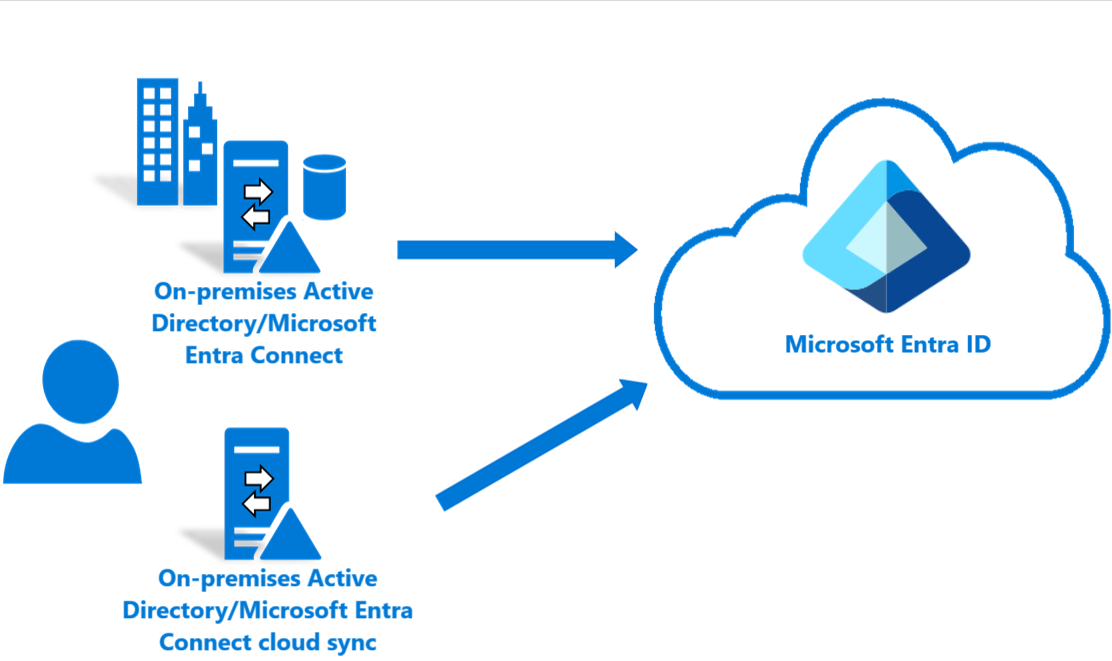
The process how the MCP works looks like this:

You will recognize the single steps at the end of the post in my short ref case.
What do you have to do?
Honestly - just follow the Microsoft article because its on point. Let me outline the basic steps for you:
Install Microsoft.Entra.Beta PowerShell module (version 1.0.13 or later):
Install-Module Microsoft.Entra.Beta -Force -AllowClobberTo register the MCP Server, you have to connect to Entra and consent to the required permissions:
Connect-Entra -Scopes 'Application.ReadWrite.All', 'Directory.Read.All', 'DelegatedPermissionGrant.ReadWrite.All'Register the Microsoft MCP Server for Enterprise in your tenant and grant all permissions to Visual Studio Code:
Grant-EntraBetaMCPServerPermission -ApplicationName VisualStudioCodeAfter the grant you will find some new Enterprise Applications:
| Name | Globally unique appId (client ID) | | --- | --- | | Microsoft MCP Server for Enterprise |
e8c77dc2-69b3-43f4-bc51-3213c9d915b4| | Visual Studio Code |aebc6443-996d-45c2-90f0-388ff96faa56|The “server“ app ships a service principal with the endpoint
https://mcp.svc.cloud.microsoft/enterprise
The “client“ app named “Visual Studio Code“ has the defined MCP scopes:

Connect to MCP using VS Code
Go for it and click Install Microsoft MCP Server for Enterprise to open VS Code's MCP install page:

After a successfull authentication you and your MCP are set.
Prompting
I have started prompting in VS Code by an easy idea: I asked to evaluate the oldest user logins.
It’s fun to see how natural language is translated to proper Graph calls and vice versa:

To understand the documented process above about how the MCP Server works, I created a short recording. Every M365 admin should relate these daily basic tasks:
Monitoring
Because of the Enterprise App you can easily monitor the Microsoft MCP Server activity logs with KQL:
MicrosoftGraphActivityLogs
| where TimeGenerated >= ago(30d)
| where AppId == "e8c77dc2-69b3-43f4-bc51-3213c9d915b4"
| project RequestId, TimeGenerated, UserId, RequestMethod, RequestUri, ResponseStatusCode

What’s next?
A next step I like to try, is to use a custom MCP client and not VS Code. In case this happens, I will let you know for sure. 😁
Another idea is to attach Azure Foundry as outlined here.
And the final takeaway: 🔴 In case you want more than just read stuff from your tenant - have a look at lokka.dev or just be patient because write access is on the roadmap:
“Support for write operations is planned for a future release.“
And to optimize the preview service, you can give feedback here.